Tag: res

  • Sequencing and Publishing MProof Clientele ITSM

    This is a fast recipe to sequence and publish MProof’s Clientele ITSM in conjunction with App-V. The reason to blog about it is that the application popped up at several of my projects.  At my last project the solution to get Clientele ITSM to work with App-V was unknown. So here goes.

    The installation is a simple drag an drop folder action into the %ProgramFiles(x86)% folder and the creation of a shortcut that points to the main executable Clientele.Loader.exe. There is however one small thing to know about this application. Use the command line parameter -nodownload in conjunction with Microsoft App-V, otherwise you will end up with an application that will try to download the complete application from the server backend at runtime. This is because the server backend will check the last modified time stamp of the files and these time stamps will be altered when the application is published through the App-V client. The parameter -nodownload disables the timestamp check.

    The initial Clientele.Loader executable points to a second executable. Either Clientele.Loaderx86.exe or Clientele.Loaderx64.exe will (depending on the bitness of the client) will be started through the initial executable. So if you are publishing the application with RES Workspace Manager it is necessary to authorize both executables (Authorized Files mechanism).

    Finally, the application will save user settings in a file called user.config somewhere in the local application data portion of the user profile (AppData\Local). After sequencing save this file and distribute it through the RES Workspace Manager zero profiling mechanism.

    If you are already using RES Workspace Manager  it is also possible to sequence the applictaion without adding the command line parameter, so you can add the command line parameter is RES Workspace Manager.
  • Changing the AppV content store location and how it affects sequences already published in RES Workspace Manager 2011

    Let me start at the beginning….

    Way back in June of 2012 I came to the project I am about to finish. During the start of the project the AppV content share was placed somewhere on the DFS. We were told (repeatedly) that that location was never going to change. Based on that we made about fifty sequences with the UNC location of the content share on the DFS as the location were the sequences reside. In conjunction with file based streaming this solution looked solid. The sequences were published in RES Workspace Manager 2011 so all the osd files were imported in to the RES Workspace Manager database.

    In hindsight we should have implemented an environment variable from the start, but for reasons unknown we didn’t.

    Just recently I was told that the location of the AppV content share needed to change. It was placed on a location that was prone to filling up with excessive data. I had a meeting with the system administrators to name some of the actions that needed to be executed.

    Defined actions:

    • Create a new LUN dedicated to the AppV content share.
    • Copy all sequences from the current AppV content share to the new AppV content share.
    • Edit the Preload scripts.
    • Edit all osd files on the new AppV content share and replace the UNC path with an environment variable.
    • Edit all sequences that are published through RES Workspace Manager and replace the UNC path with an environment variable.

    The first two actions (LUN and copy) were completed by the system administrators. Actions three and four were completed by another member of the migration team and me. I edited the Preload scripts (modified versions of the Wilco van Bragt preload scripts which can be found here). Another member of the migration team wrote a PowerShell script to change all the osd files on the new content store.

    PowerShell Script:

    $osds = Get-ChildItem -include *.osd -recurse -path \\[path to new AppV content share] foreach ($osd in $osds)
    {
    $osdFile = $osd.fullname
    $xml = New-Object XML
    $xml.Load($osdFile)
    $xml.SOFTPKG.IMPLEMENTATION.CODEBASE.HREF = $xml.SOFTPKG.IMPLEMENTATION.CODEBASE.HREF.ToUpper().Replace([path to new AppV content share], “%SequenceStore%”)
    $xml.Save($osdFile)
    }

    And for the last action I had to consult RES Software. I opened I case with the question if there is a bulk method of changing the osd files in the RES Workspace Manager database. Within a few hours I received a response which proved good enough to implement.

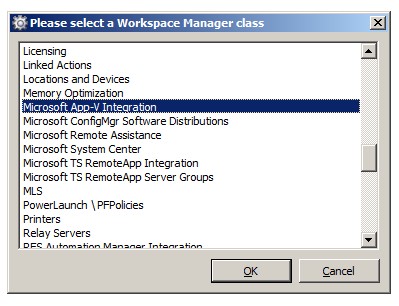
    The key combination CTRL + SHIFT + F9 opens up the screen below IF you press them in the Administration – Custom resources node. According to the mail of RES Software. In the dutch interface I found it at Configuratie – Datastore – Maatwerkbestanden.

    RES_CTRL-SHIFT-F9

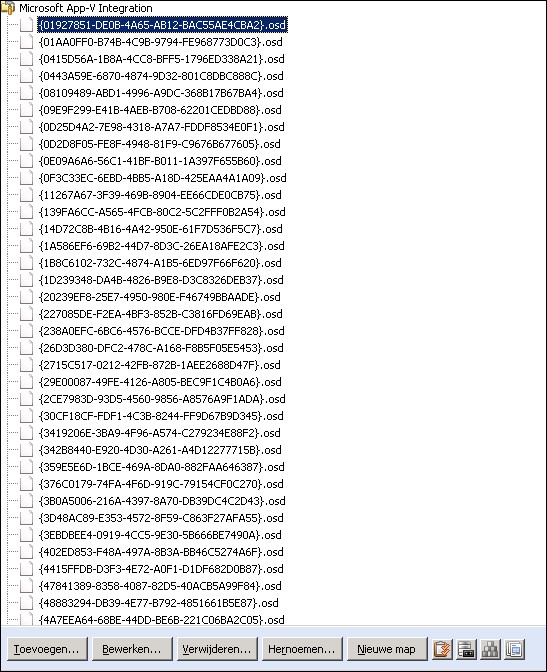
    After selecting Microsoft App-V Integration and clicking OK I am presented with the following view.

    RES_App-V_Integration

    This view makes it easy to rapidly change all the osd files that are present in the database without having to open each individual published application to discover if it is in fact a published AppV sequence and to change the osd file by clicking in the “Click here to change the OSD file in the datastore” line in each published sequence. Which in the end saves time.

    This option made the transition to a new AppV content store a lot easier to implement and it sped up the implementation a lot. Any improvements on the PowerShell script and RES Workspace Manager bulk edit action are more then welcome in the Comments field.

  • Quoter Application

    At my current project we are almost finished with the application migration. But as always that is usually the time the strangest applications pop-up. And again this was the case.

    I was asked to publish an application called Quoter. After some analysis the application Quoter seemed to be a single executable called QUOTER.EXE so I published the application in RES Workspace Manager and made it available to my test account on a test server.

    Lo and behold the application wouldn’t start. Fortunate for me during my technical test of the application a technical application manager walked in that knew the true function of the executable.  It turns out the application needs to be run with parameters to add quotation marks to the beginning and end off every line in a certain file. He also told me that the executable would only function on a 32-bit platform. The customers new environment is a 64-bit platform.

    That was the moment to send Jeff Wouters, I worked with him on a project once, a direct message on Twitter if he knew of a PowerShell one-liner to do what the Quoter application was supposed to do. Within 5 minutes (thanks again Jeff!) I received the following PowerShell one-liner:

    Get-content test.csv | foreach {” `”$_`”” | Out-File test2.csv -Append}

    I replaced the test.csv with the full path of the input file which I got from the technical application manager and changed test2.csv to the full path of the output file which I also got from the technical application manager. I saved this one-liner as quoter.ps1 and altered my Quoter application publication in RES Workspace Manager to start the PowerShell executable with the full path of quoter.ps1 as the parameter.

    Again the application wouldn’t start. I did a quick Google search and added the parameters -executionpolicy bypass -file <full path to quoter.ps1> in RES Workspace Manager. After that the Quoter application (PowerShell script) worked as QUOTER.EXE was intended. The only thing that I needed to adjust was removing a space in the one-liner supplied by Jeff Wouters which resulted in every converted line to start with a space.

    So the final version of the one-liner is:

    Get-content <path>\pctmutr | foreach {“`”$_`”” | Out-File <path>\output -Append}