Tag: sequencer

  • Parameter -EnablePVADControl will sometimes not work on a 64-bit machine

    Parameter -EnablePVADControl will sometimes not work on a 64-bit machine

    Bringing back the PVAD debate for one last time.

    Reminder:

    These are the three methods of bringing back the PVAD as discussed in several blog posts and the Microsoft TechNet site. Microsoft should fix this page though as they spell Compatibility right once and then spell it as Compatability in the Note.

    1. Launch the Sequencer from a command prompt and specify: Sequencer.exe -EnablePVADControl

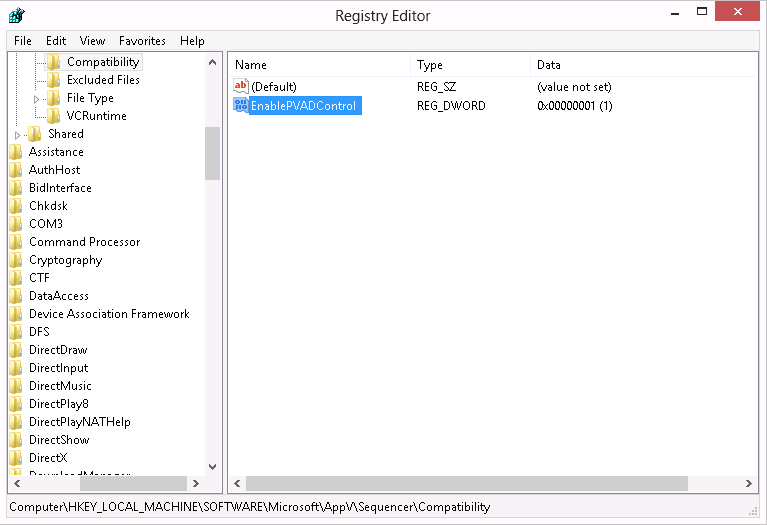
    2. Populate a DWORD value called EnablePVADControl in registry here: HKEY_LOCAL_MACHINE\SOFTWARE\Microsoft\AppV\Sequencer\Compatibility. Setting the value to 1 will enable the PVAD field next time you launch the Sequencer and 0 will turn it back off.

    EnablePVADControl_registry_setting

    3. Use the command line sequencer and specify the -PrimaryVirtualApplicationDirectory argument against New-AppvSequencerPackage.

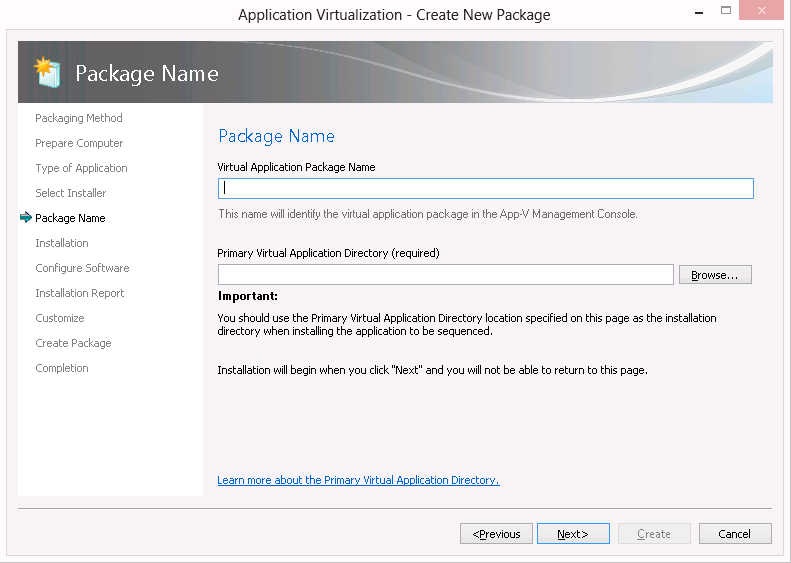
    Result should be that in the Sequencer you can specify the PVAD again. See below:

    EnablePVADControl_registry

    We just noticed that in AppV 5.0 SP3 the -EnablePVADControl parameter only works on a 32-bit machine. On a 64-bit machine the parameter is not picked up. However the registry setting mentioned earlier is picked up.

    Conclusion:

    If you want the PVAD option back and you are working on a 64-bit machine be sure to use the registry key and not the -EnablePVADControl parameter.

    Update:

    It has been pointed out to me this is not the default behaviour. I have tested this against two 64-bit machines and two 32-bit machines. I will test some more and hope to find the cause why the parameter is sometimes ignored. Conclusion is still valid though as the registry key always works.

  • Don’t use an UNC path as a dummy PVAD in AppV 5.x

    Don’t use an UNC path as a dummy PVAD in AppV 5.x

    From the beta from AppV 5.x onwards I always used a dummy folder as Primary Virtual Application Directory (PVAD from now on). By doing this I always ensured that all files ended up in the virtual file system. I want all files to end up in the virtual file system because only virtual file systems and virtual registries are able to “see” each other when two sequences are connected through an AppV 5.x Connection Group. Since the release of Hotfix 4 for AppV 5.0 SP2 the introduced option to have full write access in the virtual file system is an added reason to always install to a dummy folder as PVAD. Even Microsoft (in the person of Steve Thomas) have changed their stance about a best pratice for installing to the PVAD. Microsoft now recommends not to install to the PVAD. You can read about it here.

    During one of my AppV 5.x Basic classes we were working with a network share to save our sequences to. One of the students decided to skip some steps and used the folder on the network share as the dummy folder to be used as the PVAD. This results in a sequence that will not start on the computer with the AppV client installed. Below I will show the artifacts on the client and the troubleshooting methods used to detect the cause.

    The published shortcut doesn’t have a valid command line:
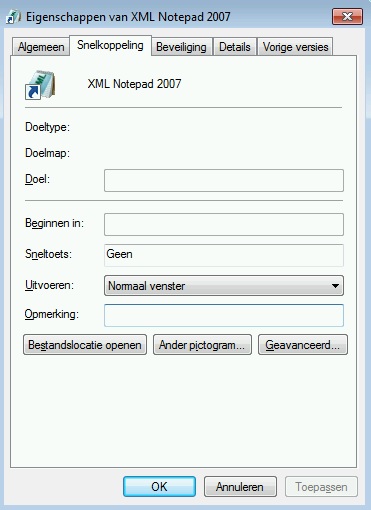
    empty_shortcut

    This either results in the application not starting (no error) or an AppV error depending on the application that is being virtualized. The student saw strange AppV errors that pointed him in questioning if the proper version of the AppV client was installed. Seeing that I had done the classroom setup and knew for sure that both AppV 5.0 SP2 HF4 Client and Sequencer were installed (I even double checked that before starting the course) we quickly ruled that out as a cause. I reproduced the issue with the application XML Notepad 2007 and that application wouldn’t start. So I went from there.

    Next I checked the AppxManifest.xml file in the C:\Programdata\[PackageID]\[VersionID] folder to see the properties of the published shortcut.
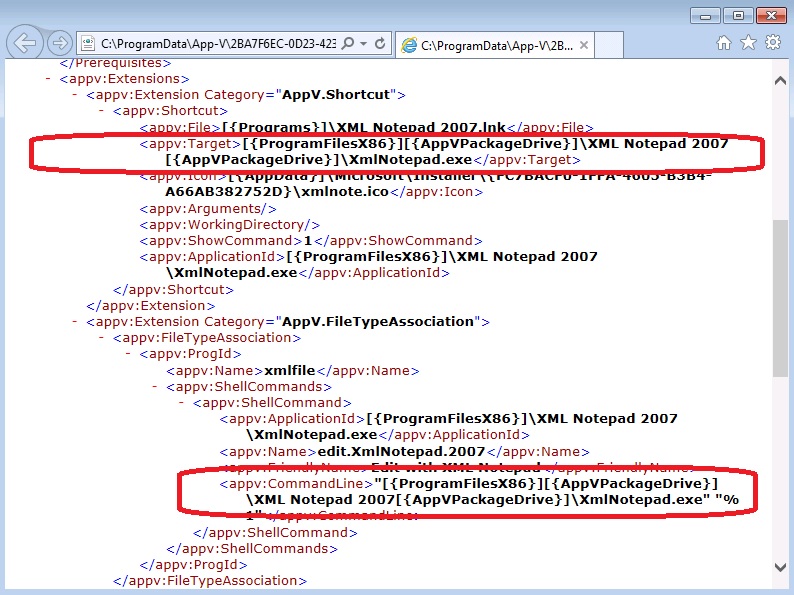
    default_configuration

    The path at appv:Target lists the [{PackageDrive}] token twice. This results in an invalid target path for the published short and therefor no path is shown in the shortcut.

    Next I went to the sequencer to list the parser items just to see where the [{PackageDrive}] token is pointing to. As expected it is pointing to the Q:\ drive used in AppV 4.x. So the shortcut is basically pointing to C:\Program Files (x86)Q:\XML Notepad 2007Q:\XmlNotepad.exe. That doesn’t look right.
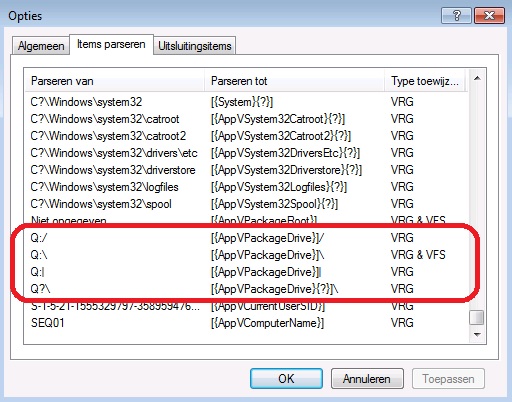
    appvpackagedrive

    By now I already suspected a faulty PVAD or something similar. So I went back to the client and checked the FilesystemMetadata.xml file in the C:\Programdata\[PackageID]\[VersionID] folder.
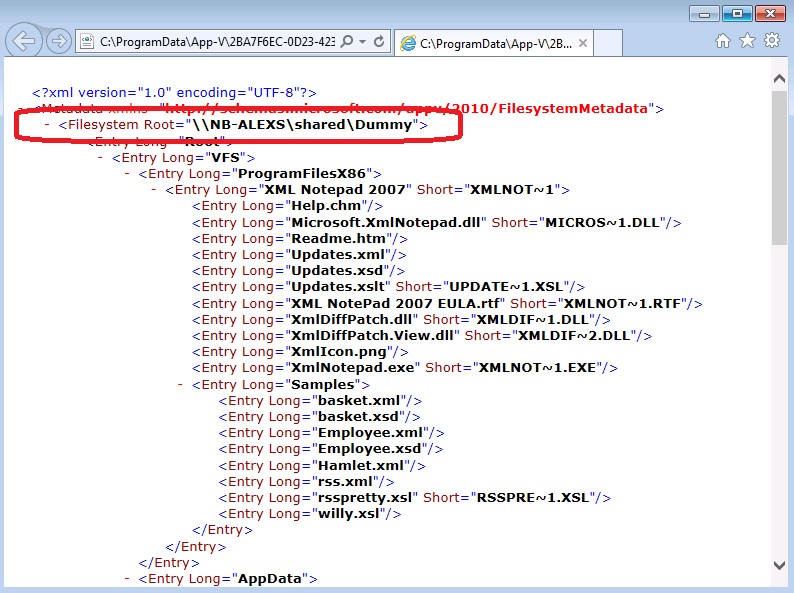
    unc_dummy_pvad_filesystemmetadata_xml

    As you can see the Filesystem Root entry (other notation for PVAD) lists an UNC path instead of a local path. This causes all kinds of paths to be populated by several [{PackageDrive}] tokens and in the process creating invalid paths.

    I did one more check on the sequencer to see more artifacts. I didn’t clean the sequence  so all Windows Installer related files and registry keys were still in the sequence. I browsed to REGISTRY\MACHINE\SOFTWARE\Windows\CurrentVersion\Installer\Folders.
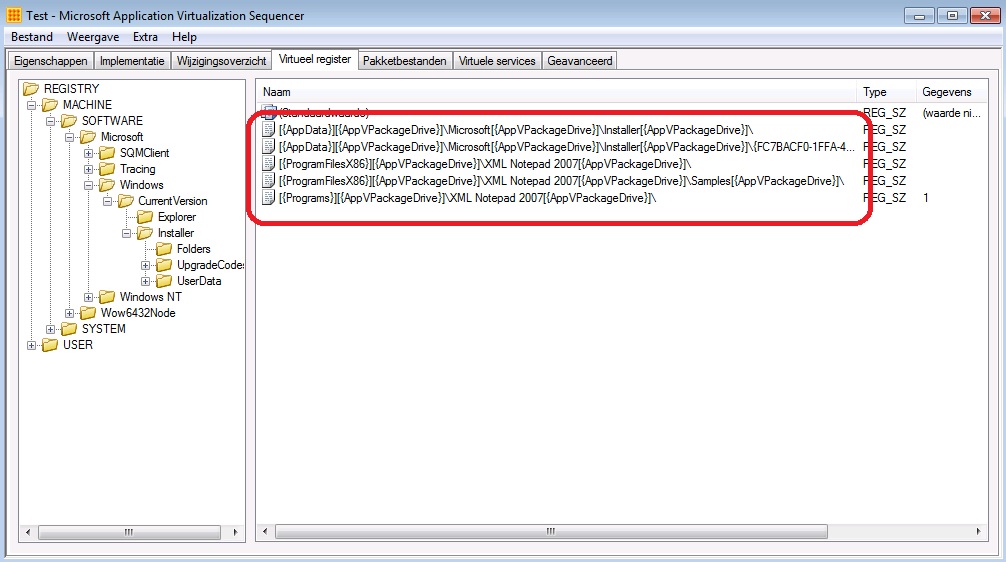
    windows_installer_registry_sequencer


    Even the Windows Installer registry keys are mangled because they contain multiple [{PackageDrive}] tokens. In my opinion the best way to fix this is to re-sequence the application and to use a folder on the local disk as a dummy PVAD

    So my advice is: Don’t use a folder on an UNC path as a dummy PVAD, use a folder on local disk instead.
  • Failed to generate MSI error in AppV 5.0

    Yesterday I spent most of my day finding the cause of strange characters in the xml configuration files. You can find my blog about it here.

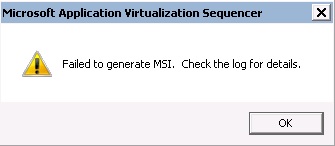
    While I was trying out saving the sequence in different localized sequencers (dutch and english) I came across the following error:

    sequencer_msi_error

    I initially thought I broke the Windows Installer service or something similar, but the reason for this error is quite easy to discover. As the error states the next step is to check the log. In AppV 5.0 the log is located in the Event Viewer.

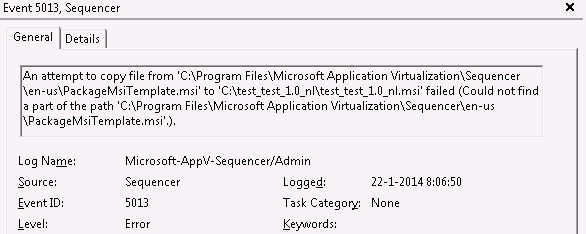
    I started the Event Viewer and opened the Application and Services Logs \ Microsoft \ AppV \ Sequencer \ Admin node to find an Error with Event ID 5013. Click on the image below to open the error in a new window.

    sequencer_event_viewer

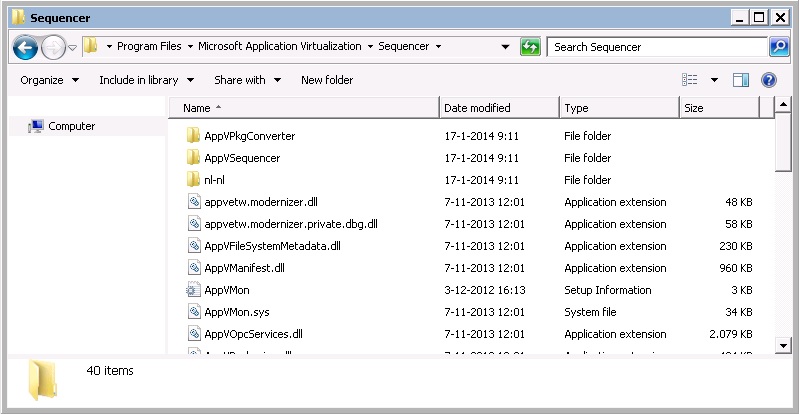
    The details on the General tab are pretty clear. For some reason the file PackageMsiTemplate.msi couldn’t be found and used to create a MSI for the sequence. I went on to check the supposed location of PackageMsiTemplate.msi and stumbled on the following:

    sequencer_installed_files

    I only have a nl-nl folder located under C:\Program Files\Microsoft Application Virtualization\Sequencer. Because the sequencer was installed while the dutch MUI pack was in effect it only installed the dutch localized version of the sequencer. After I altered the regional settings to show english menu’s the sequencer still only had dutch localization and isn’t able to find any file residing in the en-us folder including the PackageMsiTemplate.msi.

    Conlusion: Be careful when dealing with MUI packs and the sequencer. Mind you, I have only tested this with a dutch localized version of the sequencer but I am fairly certain this problem exists in all localized versions of the sequencer.

    UPDATE: Back in November of 2013 Sander Vis already wrote a blog on the same error. You can read it here.

  • Strange characters in AppV 5.0 xml configuration files

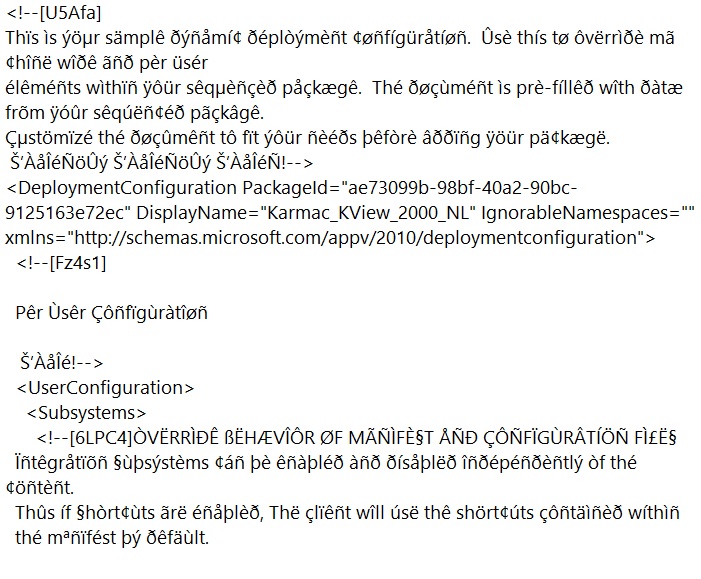
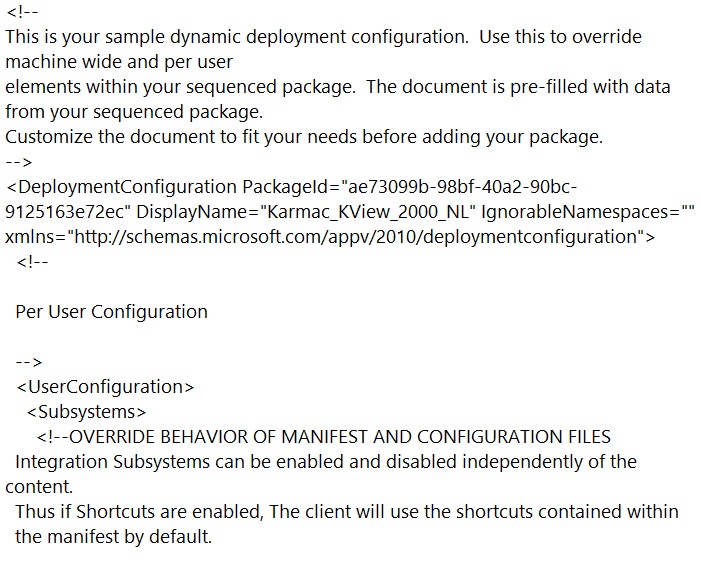
    In AppV 5.0 you can overwrite the default configuration (Appxmanifest.xml in the .appv file) with two external files called DeploymentConfig.xml and UserConfig.xml. At times I would observe strange characters in these two files.

    See the picture below for an example of a file containing these strange characters:

    sequencer_dutch

    The files should look like this:

    sequencer_english

    Today I pinpointed the cause. The strange characters only appear in the files if they are created through a localized version of the sequencer. In my case I have a Windows 7 virtual machine with an english version of the operating system but with a dutch MUI pack installed. The regional settings are set to have dutch menu’s as requested by our customer. This causes the sequencer to have a dutch GUI as well. As soon as a sequence is saved through the dutch localized version of the sequencer the files have strange characters. On a second Windows 7 virtual machine without a dutch MUI pack (or regional settings altered to allow for english menu’s) I edited the sequence and saved it without changing anything. The files had no strange characters in them. As soon as I edited the sequence on the virtual machine with the dutch MUI pack and saved again the strange characters were back.

    Mind you. I have only tested this with a dutch localized version of the sequencer but I am fairly certain this problem exists in all localized versions of the sequencer.