Category: AppV

  • App-V 5.1 misleading conversion warning (Scripts used during conversion included)

    During my last project I had the chance to convert about a hundred sequences from App-V 4.6 to App-V 5.1. I started out with a script to test if the sequences could be converted by using the Powershell cmdlet Test-AppvLegacyPackage and export the data to xml and then onto an html file. The html file proved to be a great source for reporting purposes. I am sure that the Powershell code can be a lot cleaner, but it suited my needs for the moment.

    Script used to test conversion readiness:


    $Source = "[Input Folder]"
    $Path = "[Temp Folder]"

    If (!(Test-Path $Dest ))
    {
    New-Item -Path $Dest -type directory -Force
    }
    else
    {
    Write-Host "Output Folder already present"
    }

    Get-ChildItem -Path $Source | ForEach-Object {Test-AppvLegacyPackage $_.FullName} | Export-Clixml -Path $Path\Conversion.xml
    pause
    $a = "

    "

    Import-Clixml -Path $Path\Conversion.xml | sort @{expression="Errors";Descending=$true},@{expression="Warnings";descending=$true} | Select-Object Source, Errors, Warnings, Information | convertto-html -head $a -body "< h 3 >Test-AppvLegacyPackage< / h 3 >" | Out-File $Path\Conversion.html

    * remove the spaces before, between and after h and 3 for the correct code.

    When I ran this script it generated a warning for two of the sequences reporting:

    The icon folder for this package is missing. This package will still convert successfully. However, there will be no icons associated with the applications.

    I first checked to see if the icons were in fact missing, but that was not the case. It turned out that the two sequences in question had no valid shortcut entry in the osd file. The osd file just had this entry:

    In App-V 4.6 when an osd file is present without a shortcut entry it is still possible to create an application publication in a user environment tool like RESOne Workspace Manager. In App-V 5.1 the same situation will not result in an application publication in RESOne Workspace Manager because no AppV.Shortcut entry is taken into the xml files. So the solution is quite easy. Just paste in a valid shortcut in the osd file for the warning to disappear and to create a valid AppV.Shortcut entry in App-V 5 xml files.

    Example to create an Orca shortcut entry in the osd file:


    After this change the sequences would no longer generate a warning while tested for conversion readiness and later on were successfully converted and technically tested. Below you will find the script I used to convert the sequences:


    $Source = "[Input Folder]"
    $Dest = "[Output Folder]"

    Get-ChildItem -Path $Source | Test-AppvLegacyPackage | Where-Object {$_.Errors.Count -eq 0 } | Select-Object * , @{n='SourcePath';e={$_.source}} | ConvertFrom-AppvLegacyPackage -DestinationPath $Dest

    $Packages = Get-ChildItem -Path $Dest -Filter "*.appv*"

    foreach ($Package in $Packages) {
    $Name = $Package.Name.substring(0,($Package.Name.length - 5))
    $PackageItems = Get-ChildItem -Path $Dest -Filter "$Name*"
    New-Item -Path $Dest\$Name -Type Directory
    For ($n=0; $n -le $PackageItems.Count -1; $n++) {Move-Item $PackageItems[$n].FullName $Dest\$Name}
    }

    This basically is the script that Aaron Parker posted on his website a long time ago with the addition of information of another blog post that I found. The addition is needed because in the latest versions the Powershell cmdlet expects other output from the previous cmdlet (SourcePath instead of Source).
  • Making Oracle SQL Developer with external Java JDK work on App-V 5.1

    I recently completed a project to convert App-V 4.6 sequences to App-V 5.1 sequences. One of these sequences was Oracle SQL Developer. During technical testing of Oracle SQL Developer I would receive an error stating:

    Unable to create an instance of the java virtual machine located at path c:\program files\java\jdk1.7.0_55\jre\bin\client\jvm.dll

    At the same time a co-worker had the exact same error at his customer with a converted sequence of Oracle SQL Developer. After a short search on Google I found a blog post that helped me to make the Oracle SQL Developer sequence work on the client. Just remember that not all information might be relevant for your problem, because the co-workers project demanded the  Java JDK 1.7.0_55 to be installed and used by Oracle SQL Developer. The steps to get to a solution might therefor be somewhat different.

    Steps to fix Oracle SQL Developer on App-V 5.1:

    1. Start the sequencer with the parameter -EnablePVADControl
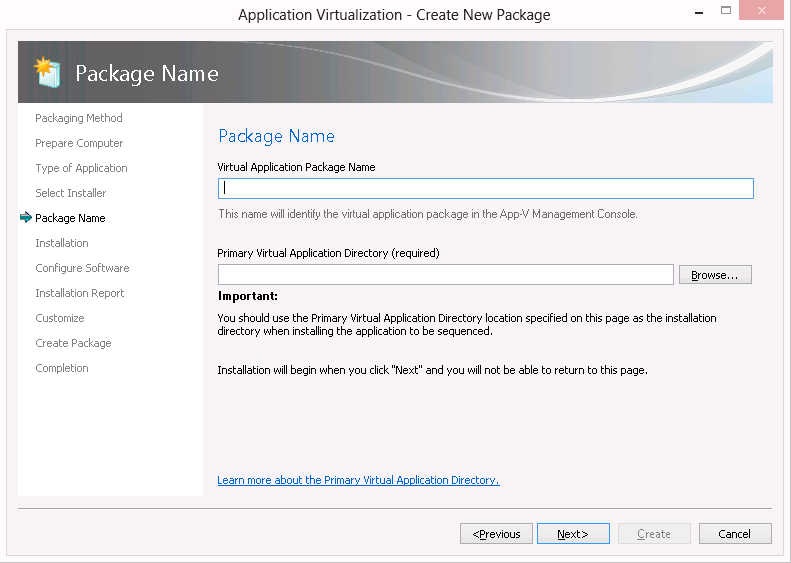
    2. Set the PVAD to C:\sqldeveloper (if you are going to copy the Oracle SQL Developer to that location, otherwise pick the proper location)
    3. Install the Java JDK to a subfolder of C:\sqldeveloper (or the correct location)
    4. Copy the source files for the Oracle SQL Developer to C:\sqldeveloper (or the correct location)
    5. Start the application
    6. Insert Java JDK path (I installed it to C:\sqldeveloper\Java\jdk1.7.0_55)
    7. Depending on your way of sequencing (cleaning %AppData% from the sequence or not) you either have to edit the file %AppData%\sqldeveloper\1.0.0.0.0\product.conf during monitoring or in your user environment tool. Change the line AddVMOption -Xmx800m to AddVMOption -Xmx256m. Be sure to edit the correct line because there is also a AddVMOption –Xms128m line present.
    8. Stop monitoring
    9. Optionally clean the sequence of unwanted files and registry entries
    10. Save the sequence
    11. Test the sequence on the client

    A message about an available update might pop up. I must admit that I haven’t put effort yet in finding out how to disable updates in Oracle SQL Developer.

    A big thanks goes out to Hosam Kamel for his blog post (http://weblogs.asp.net/hosamkamel/resolving-unable-to-create-an-instance-of-the-java-virtual-machine-error) and the reactions on that blog that pointed me to the proper solution.

    I will also let Timothy Mangan know there is one more application to be added to the list of application needing a proper PVAD instead of a dummy. You can find the list of applications needing a PVAD here.


  • Internet Explorer 11 Download Manager will not start when virtualized with AppV 4.6 SP3

    A co-worker recently ran into this problem at one of his projects. An Internet Explorer 11 add-on was virtualized using AppV 4.6 SP3 and the add-on uses the Internet Explorer Download Manager to serve up documents from a back-end. On the AppV client however pressing CTRL+J or going to the menu to start Download Manager would not start the Download Manager. The problem could be reproduced by me on my own Windows 7 Enterprise x64 image with AppV 4.6 SP3 client and Internet Explorer 11 installed. I ran some ProcMon and SpyStudio traces, but got word that the customer had opened a case with Microsoft to get a solution for this problem.

    Microsoft clearly stated in their response mail that a workaround was needed seeing that AppV 4.6 is in extended support. I will describe the fix supplied by Microsoft below because it turned out to work at another customer that had the same problem.

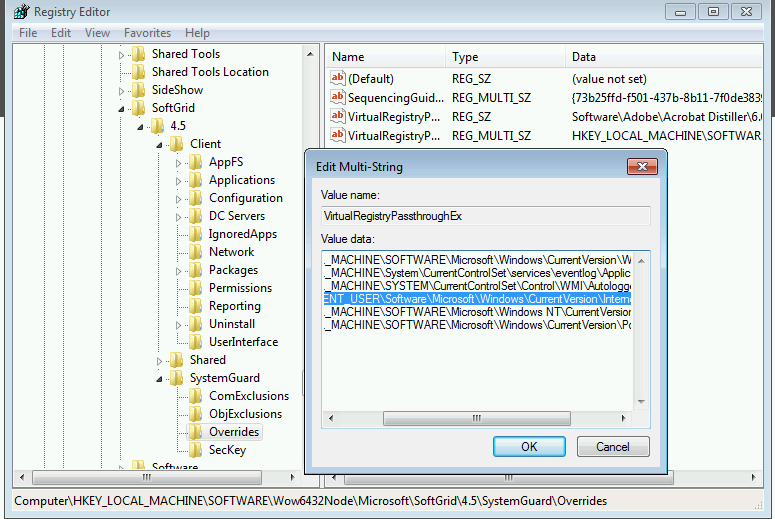
    The solution is to remove the Internet Settings entry from the AppV’s VirtualregistryPassthroughEx registry key that can be found at HKEY_LOCAL_MACHINE\SOFTWARE\Microsoft\SoftGrid\4.5\SystemGuard\Overrides or HKEY_LOCAL_MACHINE\SOFTWARE\Wow6432Node\Microsoft\SoftGrid\4.5\SystemGuard\Overrides (x64).

    Click image for a graphical representation of the registry key (x64) to remove:

    download_manager_fix

  • Parameter -EnablePVADControl will sometimes not work on a 64-bit machine

    Parameter -EnablePVADControl will sometimes not work on a 64-bit machine

    Bringing back the PVAD debate for one last time.

    Reminder:

    These are the three methods of bringing back the PVAD as discussed in several blog posts and the Microsoft TechNet site. Microsoft should fix this page though as they spell Compatibility right once and then spell it as Compatability in the Note.

    1. Launch the Sequencer from a command prompt and specify: Sequencer.exe -EnablePVADControl

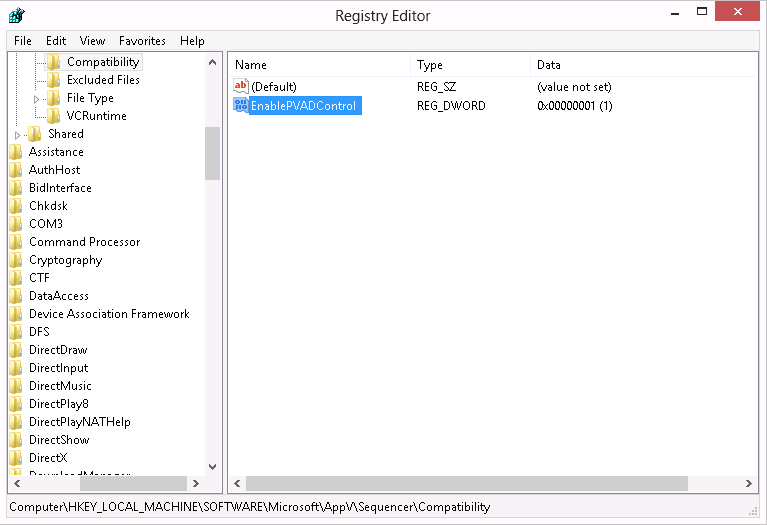
    2. Populate a DWORD value called EnablePVADControl in registry here: HKEY_LOCAL_MACHINE\SOFTWARE\Microsoft\AppV\Sequencer\Compatibility. Setting the value to 1 will enable the PVAD field next time you launch the Sequencer and 0 will turn it back off.

    EnablePVADControl_registry_setting

    3. Use the command line sequencer and specify the -PrimaryVirtualApplicationDirectory argument against New-AppvSequencerPackage.

    Result should be that in the Sequencer you can specify the PVAD again. See below:

    EnablePVADControl_registry

    We just noticed that in AppV 5.0 SP3 the -EnablePVADControl parameter only works on a 32-bit machine. On a 64-bit machine the parameter is not picked up. However the registry setting mentioned earlier is picked up.

    Conclusion:

    If you want the PVAD option back and you are working on a 64-bit machine be sure to use the registry key and not the -EnablePVADControl parameter.

    Update:

    It has been pointed out to me this is not the default behaviour. I have tested this against two 64-bit machines and two 32-bit machines. I will test some more and hope to find the cause why the parameter is sometimes ignored. Conclusion is still valid though as the registry key always works.

  • Sequencing and Publishing MProof Clientele ITSM

    This is a fast recipe to sequence and publish MProof’s Clientele ITSM in conjunction with App-V. The reason to blog about it is that the application popped up at several of my projects.  At my last project the solution to get Clientele ITSM to work with App-V was unknown. So here goes.

    The installation is a simple drag an drop folder action into the %ProgramFiles(x86)% folder and the creation of a shortcut that points to the main executable Clientele.Loader.exe. There is however one small thing to know about this application. Use the command line parameter -nodownload in conjunction with Microsoft App-V, otherwise you will end up with an application that will try to download the complete application from the server backend at runtime. This is because the server backend will check the last modified time stamp of the files and these time stamps will be altered when the application is published through the App-V client. The parameter -nodownload disables the timestamp check.

    The initial Clientele.Loader executable points to a second executable. Either Clientele.Loaderx86.exe or Clientele.Loaderx64.exe will (depending on the bitness of the client) will be started through the initial executable. So if you are publishing the application with RES Workspace Manager it is necessary to authorize both executables (Authorized Files mechanism).

    Finally, the application will save user settings in a file called user.config somewhere in the local application data portion of the user profile (AppData\Local). After sequencing save this file and distribute it through the RES Workspace Manager zero profiling mechanism.

    If you are already using RES Workspace Manager  it is also possible to sequence the applictaion without adding the command line parameter, so you can add the command line parameter is RES Workspace Manager.

  • AppV 5.0 SP3 and the “hidden” PVAD

    AppV 5.0 SP3 and the “hidden” PVAD

    I just downloaded the bits and bytes for the AppV 5.0 SP3 and started to play around with the PVAD that is now “hidden”. This is because a Merged roots principle was introduced.

    First let me take you back to version 4.x of AppV. One thing I didn’t like about AppV 4.6 and using a long file name for the asset folder is the fact that a random short file name was created for the sequence

    Example would be:

    A sequence with the long file name Adobe_Reader_XI_NL_B01 could have a generated short name of F3WJDL8N.X1W (or any other randomly chosen name that contains alpha-numerical characters).

    The chance of two randomly generated short names being identical were almost non-existant but there was a small chance. That last part is what I didn’t like about it. If you used a name within the 8.3 format for the long file name the result would be that the short file name would automatically be the same as the long file name. So that meant more control over possible conflicts or even removing the chance of conflicts.

    In AppV 5.0 SP3 the same principle is re-introduced. The option to declare a PVAD is not available any more. It can be brought back by changing a registry key or starting the sequencer with the -EnablePVADControl parameter. More on this can be found in the write-up of Tim Mangan of AppV 5.0 SP3 which you can find here.

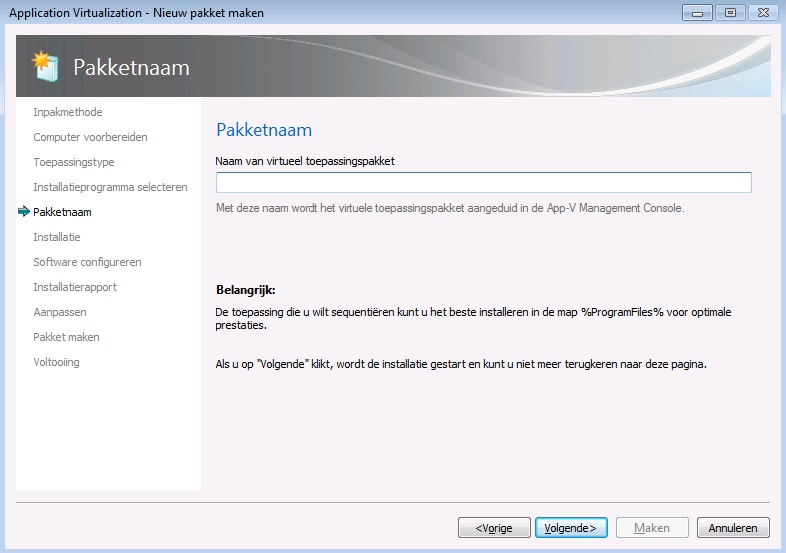
    The screen that you see just before you start monitoring now looks like this (I hope you don’t mind the dutch GUI):

    no_pvad

    In AppV 5.0 SP3 you can only name the sequence and the description now reads that on the AppV Management Server this is the displayed name of the sequence. As you can see by default there is no PVAD option availbale. Also in the bottom part of the screen you get the recommendation to install the application to %ProgramFiles%.

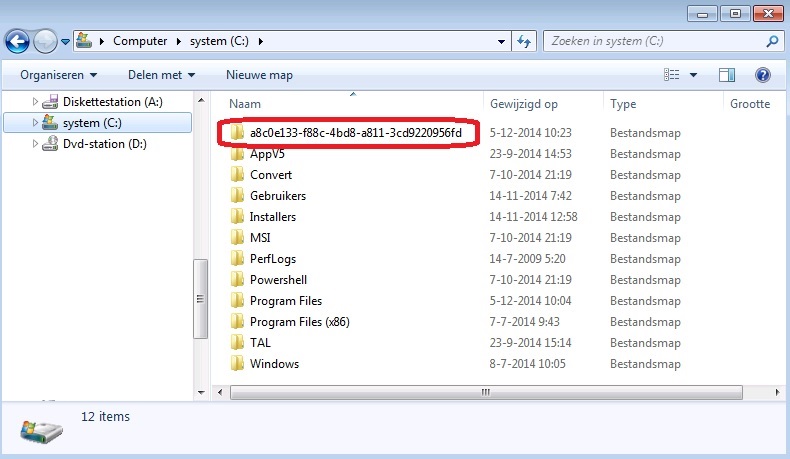
    What the sequencer does next is create a folder with a random GUID as name in the root of C:\. You can see that in the picture below:

    guid_folder

    When installing the application to the default location (usually %ProgramFiles%) all files will be placed in the virtual file system. Now you automatically install to a dummy PVAD by default. It is however still possible to install to the AppVPackageRoot by selecting the automatically created folder as the installation folder. You might need this for a few application that can’t handle being installed to the virtual file system (WinZip is one of those application). Some other examples of these application can also be found in the write-up of TimMangan that I mentioned earlier.

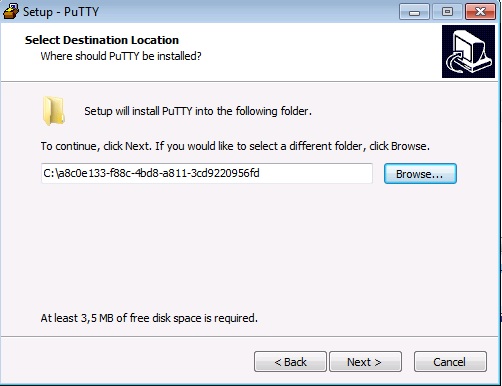
    See below for installing an application (Putty still remains a good test application) to the folder with the randomly generated GUID:

    putty_install_guid_folder

    And the result in the sequencer:

    appvpackageroot

    As you can see you the files still end up in the AppVPackageRoot.

    So AppV 5.0 SP3 uses a “hidden” PVAD which you can still bypass rather easily. It also removes the option to set an UNC path as dummy PVAD which I wrote about here. At least if you don’t use the -EnablePVADControl parameter or the registry change.

  • Don’t use an UNC path as a dummy PVAD in AppV 5.x

    Don’t use an UNC path as a dummy PVAD in AppV 5.x

    From the beta from AppV 5.x onwards I always used a dummy folder as Primary Virtual Application Directory (PVAD from now on). By doing this I always ensured that all files ended up in the virtual file system. I want all files to end up in the virtual file system because only virtual file systems and virtual registries are able to “see” each other when two sequences are connected through an AppV 5.x Connection Group. Since the release of Hotfix 4 for AppV 5.0 SP2 the introduced option to have full write access in the virtual file system is an added reason to always install to a dummy folder as PVAD. Even Microsoft (in the person of Steve Thomas) have changed their stance about a best pratice for installing to the PVAD. Microsoft now recommends not to install to the PVAD. You can read about it here.

    During one of my AppV 5.x Basic classes we were working with a network share to save our sequences to. One of the students decided to skip some steps and used the folder on the network share as the dummy folder to be used as the PVAD. This results in a sequence that will not start on the computer with the AppV client installed. Below I will show the artifacts on the client and the troubleshooting methods used to detect the cause.

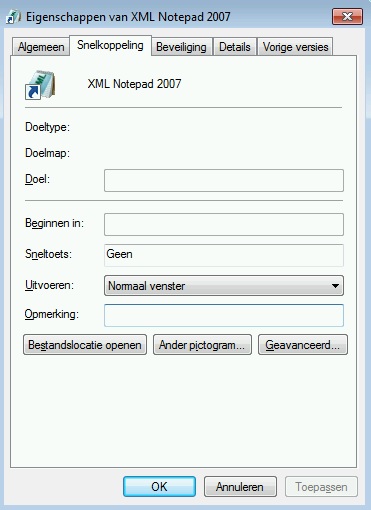
    The published shortcut doesn’t have a valid command line:

    empty_shortcut

    This either results in the application not starting (no error) or an AppV error depending on the application that is being virtualized. The student saw strange AppV errors that pointed him in questioning if the proper version of the AppV client was installed. Seeing that I had done the classroom setup and knew for sure that both AppV 5.0 SP2 HF4 Client and Sequencer were installed (I even double checked that before starting the course) we quickly ruled that out as a cause. I reproduced the issue with the application XML Notepad 2007 and that application wouldn’t start. So I went from there.

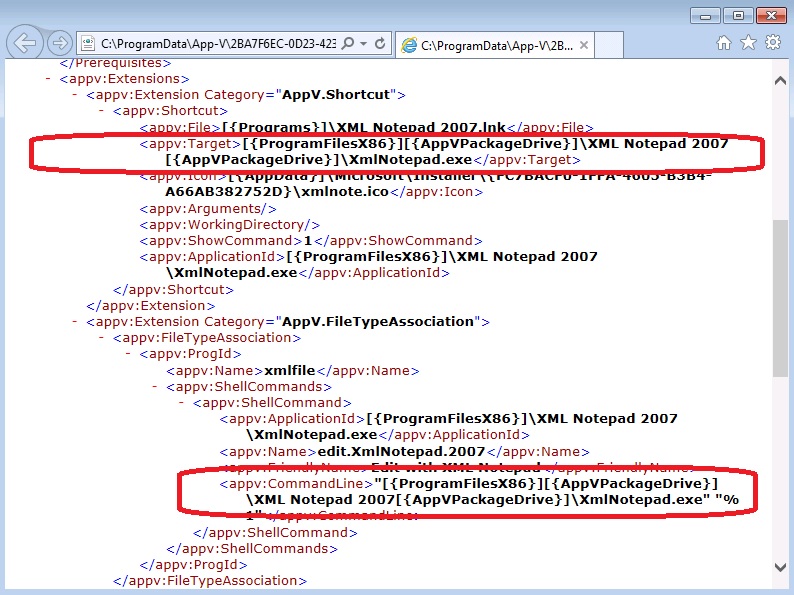
    Next I checked the AppxManifest.xml file in the C:\Programdata\[PackageID]\[VersionID] folder to see the properties of the published shortcut.

    default_configuration

    The path at appv:Target lists the [{PackageDrive}] token twice. This results in an invalid target path for the published short and therefor no path is shown in the shortcut.

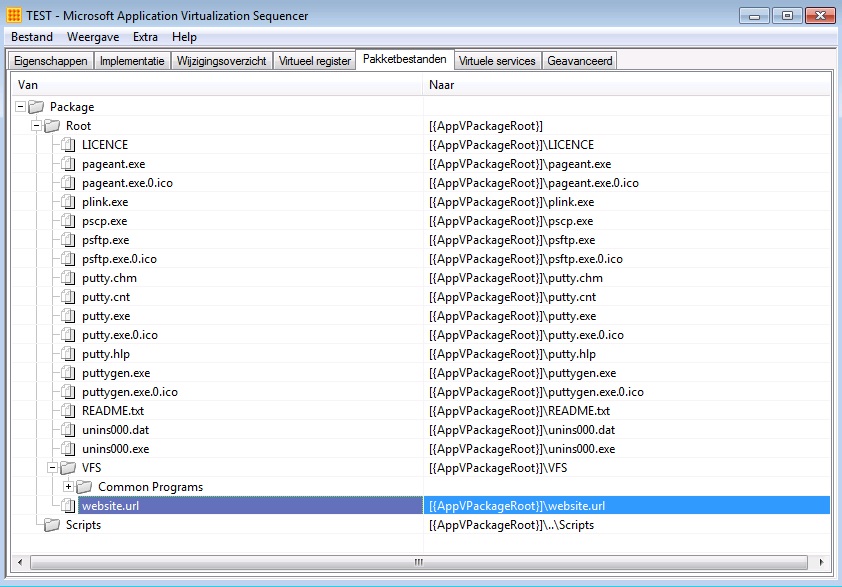
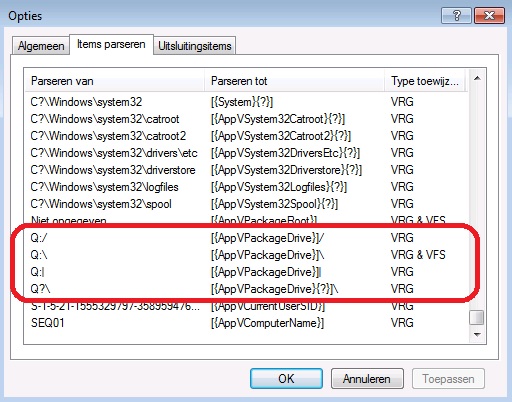
    Next I went to the sequencer to list the parser items just to see where the [{PackageDrive}] token is pointing to. As expected it is pointing to the Q:\ drive used in AppV 4.x. So the shortcut is basically pointing to C:\Program Files (x86)Q:\XML Notepad 2007Q:\XmlNotepad.exe. That doesn’t look right.

    appvpackagedrive

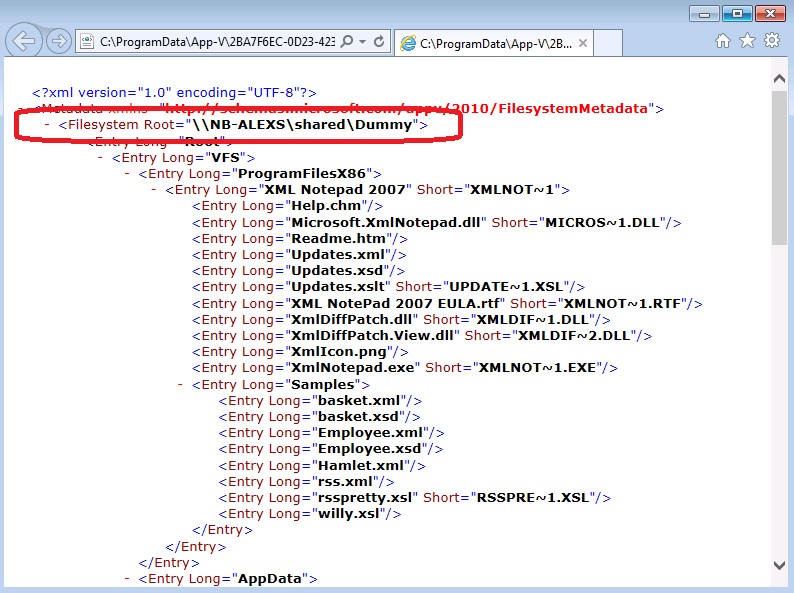
    By now I already suspected a faulty PVAD or something similar. So I went back to the client and checked the FilesystemMetadata.xml file in the C:\Programdata\[PackageID]\[VersionID] folder.

    unc_dummy_pvad_filesystemmetadata_xml

    As you can see the Filesystem Root entry (other notation for PVAD) lists an UNC path instead of a local path. This causes all kinds of paths to be populated by several [{PackageDrive}] tokens and in the process creating invalid paths.

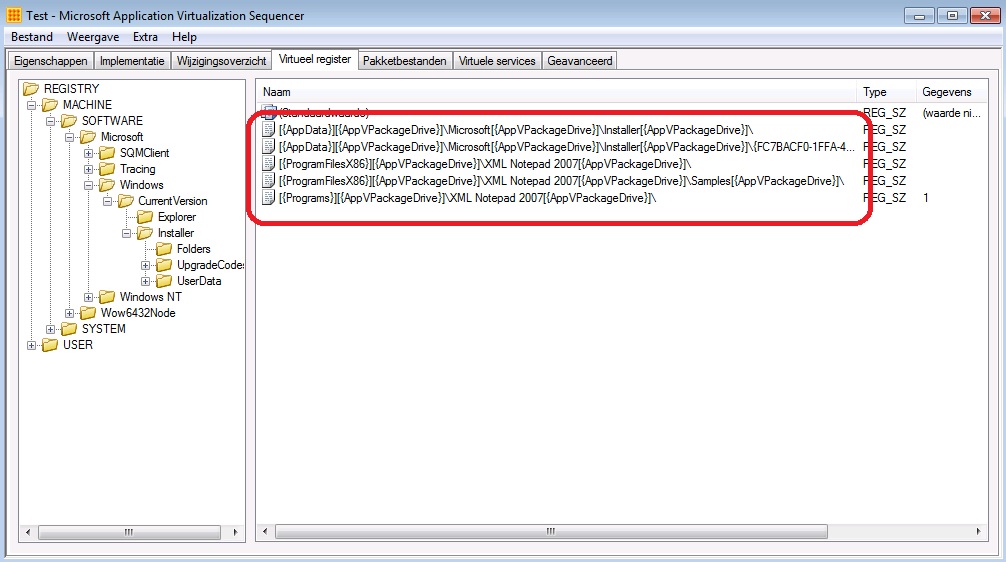
    I did one more check on the sequencer to see more artifacts. I didn’t clean the sequence  so all Windows Installer related files and registry keys were still in the sequence. I browsed to REGISTRY\MACHINE\SOFTWARE\Windows\CurrentVersion\Installer\Folders.

    windows_installer_registry_sequencer


    Even the Windows Installer registry keys are mangled because they contain multiple [{PackageDrive}] tokens. In my opinion the best way to fix this is to re-sequence the application and to use a folder on the local disk as a dummy PVAD

    So my advice is: Don’t use a folder on an UNC path as a dummy PVAD, use a folder on local disk instead.

  • Sequencing Google Chrome 38.0 in AppV 5.0

    It has been a while since my last blog post but I found something that’s hasn’t been blogged about or is specific enough to blog about. As far as I know…

    Last week I was asked to see if I could sequence Google Chrome 38.0 using AppV 5.0 with hotfix 4 applied. For the same customer I was also asked to see if I could sequence Google Chrome 37.0 a couple of weeks ago. The attempt with Google Chrome 37.0 failed in their VDI environment with a crash on first launch while a second launch in the same session would succesfully start Chrome. On a non-VDI machine Chrome would work without a problem. I started some basic troubleshooting looking at their user environment tool Flex+ from Immidio and the state that was saved by the sequence. While I was away for presenting at AppManagEvent and a holiday the decision was made to deliver Google Chrome 37.0 as an MSI instead of a sequence. And someone else had made the MSI.

    With the failure of starting Chrome in the VDI environment in mind I started a test installation of Google Chrome 38.0 applying the recipes of Aaron Parker and Cody Lambert that I used in the past to virtualize Google Chrome. This time I couldn’t get Google Chrome to work using these recipes.

    These are the actions I carried out during my test installation on a 32-bit Windows 7 sequencing machine provided by the customer:

    1. Install googlechromestandaloneenterprise.msi.
    2. Move all files from the C:\Program Files\Google\Chrome\Application\38.0.2125.104 folder to the C:\Program Files\Google\Chrome\Application folder.
    3. Delete the C:\Program Files\Google\Chrome\Application\38.0.2125.104 folder.
    4. Delete the C:\Program Files\Google\Chrome\Application\Installer folder.
    5. Disable two Google Update services.
    6. Disable two Google related Scheduled Tasks.
    7. Delete the C:\Program Files\Google\Chrome folder.
    8. Importing registry files to remove a pending file operation and to disable the auto updating functionality of Chrome.

    After starting Chrome I was presented with an error that chrome_elf.dll could not be found. I could get rid off this error by moving or copying this file back to the C:\Program Files\Google\Chrome\Application\38.0.2125.104 folder. Now comes the strange part, I just tried to reproduce the error on one of my own 64-bit Windows 7 machines and I couldn’t reproduce it. Maybe the bitness or the OS language (customer’s is dutch, mine is english) has something to do with that.

    Till now I haven’t found the reason for the chrome_elf.dll error.

    But after placing the chrome_elf.dll back into the versionized folder I was presented with another unexpected error, which I suspect having something to do with disabling update services and scheduled tasks.

    I ended up sequencing Google Chrome as is, without disabling updates and without following any recipe. The customer already has a Google group policy in place for the MSI version of Google Chrome that they have in production. I just delivered the group policy settings to disable Google Chrome from auto updating  to be added to the existing Google group policy. As far as I know the customer was testing Google Chrome but has abandoned version 38.0 to try and sequence version 39.0.


  • Failed to generate MSI error in AppV 5.0

    Yesterday I spent most of my day finding the cause of strange characters in the xml configuration files. You can find my blog about it here.

    While I was trying out saving the sequence in different localized sequencers (dutch and english) I came across the following error:

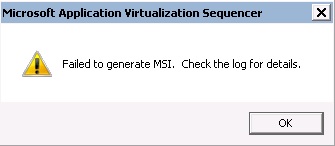
    sequencer_msi_error

    I initially thought I broke the Windows Installer service or something similar, but the reason for this error is quite easy to discover. As the error states the next step is to check the log. In AppV 5.0 the log is located in the Event Viewer.

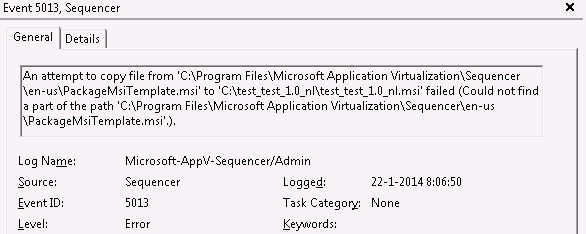
    I started the Event Viewer and opened the Application and Services Logs \ Microsoft \ AppV \ Sequencer \ Admin node to find an Error with Event ID 5013. Click on the image below to open the error in a new window.

    sequencer_event_viewer

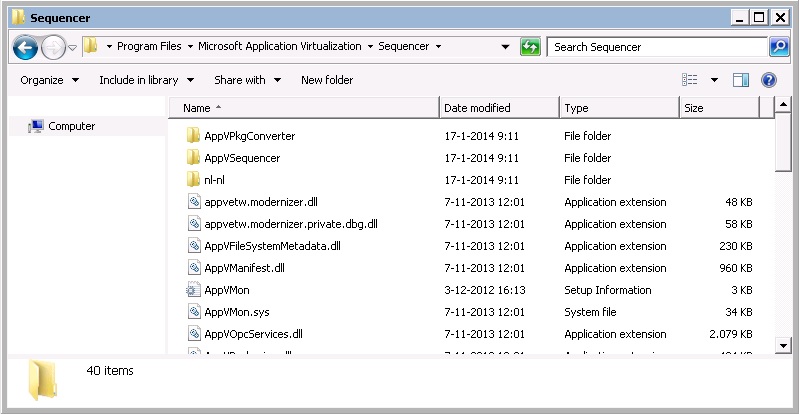
    The details on the General tab are pretty clear. For some reason the file PackageMsiTemplate.msi couldn’t be found and used to create a MSI for the sequence. I went on to check the supposed location of PackageMsiTemplate.msi and stumbled on the following:

    sequencer_installed_files

    I only have a nl-nl folder located under C:\Program Files\Microsoft Application Virtualization\Sequencer. Because the sequencer was installed while the dutch MUI pack was in effect it only installed the dutch localized version of the sequencer. After I altered the regional settings to show english menu’s the sequencer still only had dutch localization and isn’t able to find any file residing in the en-us folder including the PackageMsiTemplate.msi.

    Conlusion: Be careful when dealing with MUI packs and the sequencer. Mind you, I have only tested this with a dutch localized version of the sequencer but I am fairly certain this problem exists in all localized versions of the sequencer.

    UPDATE: Back in November of 2013 Sander Vis already wrote a blog on the same error. You can read it here.

  • Strange characters in AppV 5.0 xml configuration files

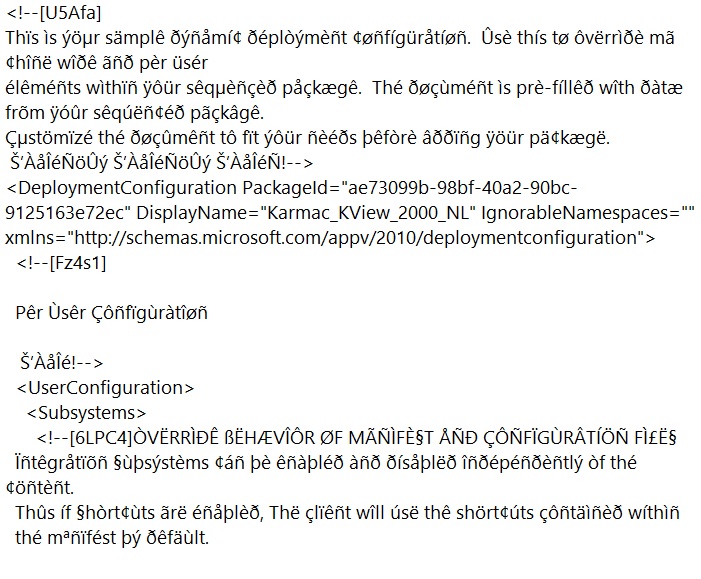
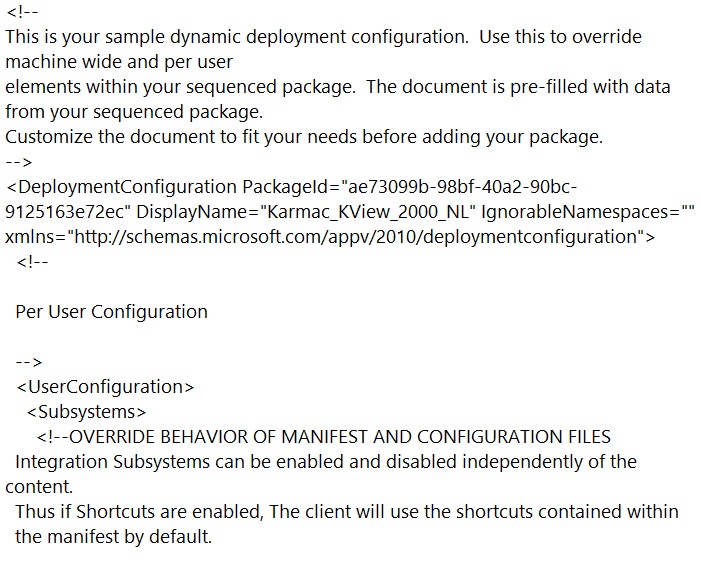
    In AppV 5.0 you can overwrite the default configuration (Appxmanifest.xml in the .appv file) with two external files called DeploymentConfig.xml and UserConfig.xml. At times I would observe strange characters in these two files.

    See the picture below for an example of a file containing these strange characters:

    sequencer_dutch

    The files should look like this:

    sequencer_english

    Today I pinpointed the cause. The strange characters only appear in the files if they are created through a localized version of the sequencer. In my case I have a Windows 7 virtual machine with an english version of the operating system but with a dutch MUI pack installed. The regional settings are set to have dutch menu’s as requested by our customer. This causes the sequencer to have a dutch GUI as well. As soon as a sequence is saved through the dutch localized version of the sequencer the files have strange characters. On a second Windows 7 virtual machine without a dutch MUI pack (or regional settings altered to allow for english menu’s) I edited the sequence and saved it without changing anything. The files had no strange characters in them. As soon as I edited the sequence on the virtual machine with the dutch MUI pack and saved again the strange characters were back.

    Mind you. I have only tested this with a dutch localized version of the sequencer but I am fairly certain this problem exists in all localized versions of the sequencer.