Blog

  • Sequencing Google Chrome 38.0 in AppV 5.0

    It has been a while since my last blog post but I found something that’s hasn’t been blogged about or is specific enough to blog about. As far as I know…

    Last week I was asked to see if I could sequence Google Chrome 38.0 using AppV 5.0 with hotfix 4 applied. For the same customer I was also asked to see if I could sequence Google Chrome 37.0 a couple of weeks ago. The attempt with Google Chrome 37.0 failed in their VDI environment with a crash on first launch while a second launch in the same session would succesfully start Chrome. On a non-VDI machine Chrome would work without a problem. I started some basic troubleshooting looking at their user environment tool Flex+ from Immidio and the state that was saved by the sequence. While I was away for presenting at AppManagEvent and a holiday the decision was made to deliver Google Chrome 37.0 as an MSI instead of a sequence. And someone else had made the MSI.

    With the failure of starting Chrome in the VDI environment in mind I started a test installation of Google Chrome 38.0 applying the recipes of Aaron Parker and Cody Lambert that I used in the past to virtualize Google Chrome. This time I couldn’t get Google Chrome to work using these recipes.

    These are the actions I carried out during my test installation on a 32-bit Windows 7 sequencing machine provided by the customer:

    1. Install googlechromestandaloneenterprise.msi.
    2. Move all files from the C:\Program Files\Google\Chrome\Application\38.0.2125.104 folder to the C:\Program Files\Google\Chrome\Application folder.
    3. Delete the C:\Program Files\Google\Chrome\Application\38.0.2125.104 folder.
    4. Delete the C:\Program Files\Google\Chrome\Application\Installer folder.
    5. Disable two Google Update services.
    6. Disable two Google related Scheduled Tasks.
    7. Delete the C:\Program Files\Google\Chrome folder.
    8. Importing registry files to remove a pending file operation and to disable the auto updating functionality of Chrome.

    After starting Chrome I was presented with an error that chrome_elf.dll could not be found. I could get rid off this error by moving or copying this file back to the C:\Program Files\Google\Chrome\Application\38.0.2125.104 folder. Now comes the strange part, I just tried to reproduce the error on one of my own 64-bit Windows 7 machines and I couldn’t reproduce it. Maybe the bitness or the OS language (customer’s is dutch, mine is english) has something to do with that.

    Till now I haven’t found the reason for the chrome_elf.dll error.

    But after placing the chrome_elf.dll back into the versionized folder I was presented with another unexpected error, which I suspect having something to do with disabling update services and scheduled tasks.

    I ended up sequencing Google Chrome as is, without disabling updates and without following any recipe. The customer already has a Google group policy in place for the MSI version of Google Chrome that they have in production. I just delivered the group policy settings to disable Google Chrome from auto updating  to be added to the existing Google group policy. As far as I know the customer was testing Google Chrome but has abandoned version 38.0 to try and sequence version 39.0.
     

  • Failed to generate MSI error in AppV 5.0

    Yesterday I spent most of my day finding the cause of strange characters in the xml configuration files. You can find my blog about it here.

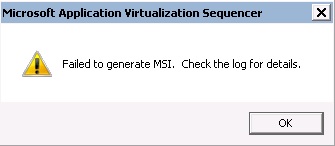
    While I was trying out saving the sequence in different localized sequencers (dutch and english) I came across the following error:

    sequencer_msi_error

    I initially thought I broke the Windows Installer service or something similar, but the reason for this error is quite easy to discover. As the error states the next step is to check the log. In AppV 5.0 the log is located in the Event Viewer.

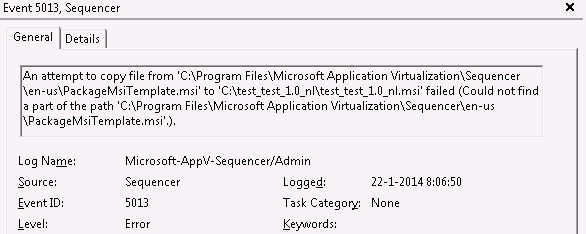
    I started the Event Viewer and opened the Application and Services Logs \ Microsoft \ AppV \ Sequencer \ Admin node to find an Error with Event ID 5013. Click on the image below to open the error in a new window.

    sequencer_event_viewer

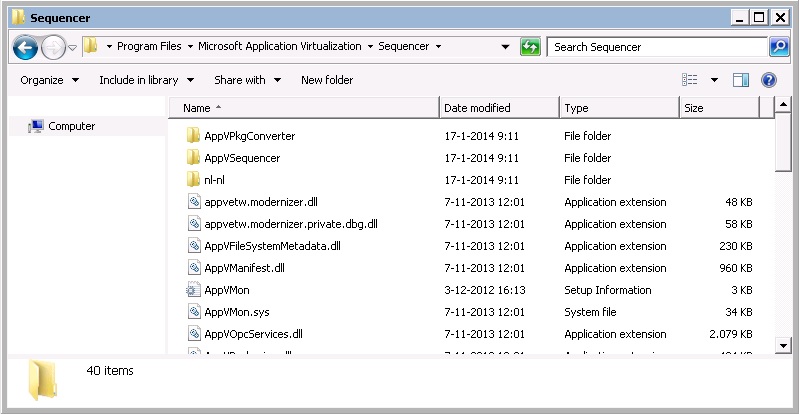
    The details on the General tab are pretty clear. For some reason the file PackageMsiTemplate.msi couldn’t be found and used to create a MSI for the sequence. I went on to check the supposed location of PackageMsiTemplate.msi and stumbled on the following:

    sequencer_installed_files

    I only have a nl-nl folder located under C:\Program Files\Microsoft Application Virtualization\Sequencer. Because the sequencer was installed while the dutch MUI pack was in effect it only installed the dutch localized version of the sequencer. After I altered the regional settings to show english menu’s the sequencer still only had dutch localization and isn’t able to find any file residing in the en-us folder including the PackageMsiTemplate.msi.

    Conlusion: Be careful when dealing with MUI packs and the sequencer. Mind you, I have only tested this with a dutch localized version of the sequencer but I am fairly certain this problem exists in all localized versions of the sequencer.

    UPDATE: Back in November of 2013 Sander Vis already wrote a blog on the same error. You can read it here.

  • Strange characters in AppV 5.0 xml configuration files

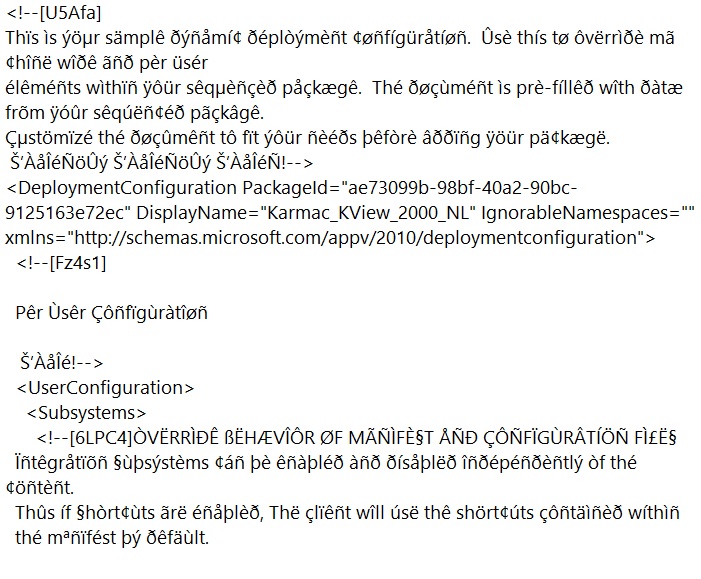
    In AppV 5.0 you can overwrite the default configuration (Appxmanifest.xml in the .appv file) with two external files called DeploymentConfig.xml and UserConfig.xml. At times I would observe strange characters in these two files.

    See the picture below for an example of a file containing these strange characters:

    sequencer_dutch

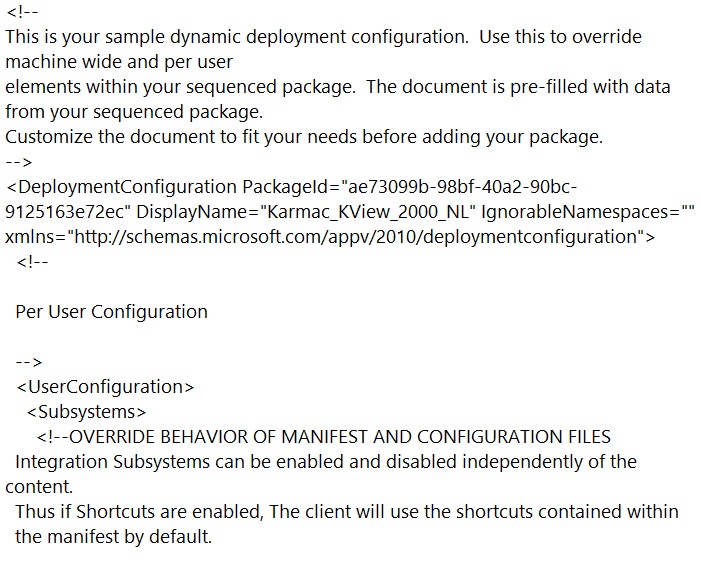
    The files should look like this:

    sequencer_english

    Today I pinpointed the cause. The strange characters only appear in the files if they are created through a localized version of the sequencer. In my case I have a Windows 7 virtual machine with an english version of the operating system but with a dutch MUI pack installed. The regional settings are set to have dutch menu’s as requested by our customer. This causes the sequencer to have a dutch GUI as well. As soon as a sequence is saved through the dutch localized version of the sequencer the files have strange characters. On a second Windows 7 virtual machine without a dutch MUI pack (or regional settings altered to allow for english menu’s) I edited the sequence and saved it without changing anything. The files had no strange characters in them. As soon as I edited the sequence on the virtual machine with the dutch MUI pack and saved again the strange characters were back.

    Mind you. I have only tested this with a dutch localized version of the sequencer but I am fairly certain this problem exists in all localized versions of the sequencer.

  • How VMware added 64bit support in ThinApp

    I have been looking at VMware’s ThinApp 5.0 and the 64bit support that was added for the last few weeks now. Triggered by an excellent blog here by Rory Monaghan I decided to blog about one bit of missing information.

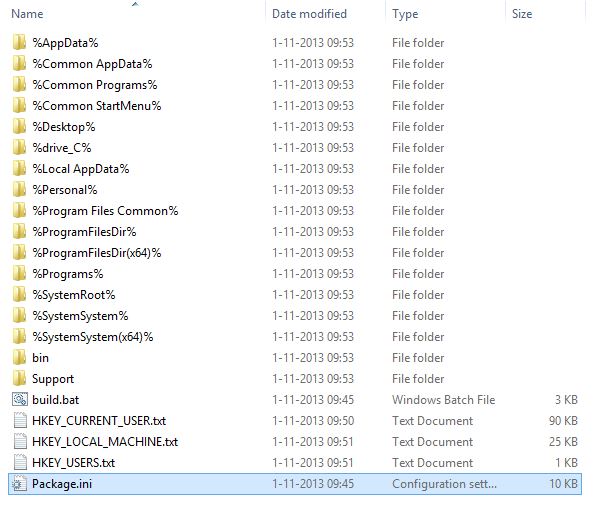
    Rory blogged about the installation, the setup capture process and the added 64bit settings in package.ini. I will not show the same information here but will only show the information I want to add to the post of Rory. I want to show you the extra folders that are created in the project folder which in my eyes are quite different from how Microsoft added 64bit support to AppV and to their client operating systems in general. Microsoft added 64bit identifiers like C:\Program Files (x86) and C:\Windows\SysWOW64 to the parser items list in AppV. This is how VMware added 64bit file locations:

     thinapp_x64

    As you can see VMware added the %ProgramFilesDir(x64)% and %SystemSystem(x64)% entries to hold 64bit program and system files. Virtualizing 32bit applications hasn’t changed: the files were stored in the %ProgramFilesDir% folder before 64bit support was added and are also stored in that same location in ThinApp 5.0. This means that applications virtualized with earlier versions of SetupCapture should continue to work because only new entries are introduced for 64bit support. Unlike the Microsoft solution where you need a specific client version of AppV (4.6.x or 5.0.x) to be able to leverage 64bit support, because the parser item list on the sequencer and the client need to be the same.

    I really like this way of adding 64bit support which provides backwards compatibility.

  • Fixing WinZip MSI error when sequencing with AppV 5.x

    In AppV 5.x I have been sequencing applications pointing the primary virtual application directory (PVAD) to a dummy folder like C:\apps. The primary virtual application directory is the location where the virtual file system (VFS) will be created during sequencing. The reason for using a dummy folder is the inability of AppV connection groups to merge only the VFS when it comes to files. I want to be prepared to use the application in an AppV connection group if necessary.

    When sequencing WinZip 17.5 in AppV 5.0 SP2 beta in this way the following error appears when starting the application:

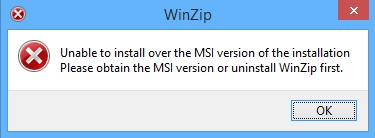
     WinZip_error

    The solution seems to be very easy to implement. The error “Unable to install over the MSI version of the installation. Please obtain the MSI version or uninstall WinZip first” will not appear when the PVAD points to the initial installation folder of WinZip and Winzip is actually installed to the initial installation folder. Setting your PVAD to C:\Program Files\WinZip and actually installing to C:\Program Files\WinZip will solve this error.

  • Unexpected behaviour when upgrading AppV 5.0 SP1 sequences

    One of my students noticed some unexpected behaviour when upgrading an AppV 5.0 sequence for the second time. I haven’t run into this unexpected behaviour earlier because normally I make a new sequence every single time.

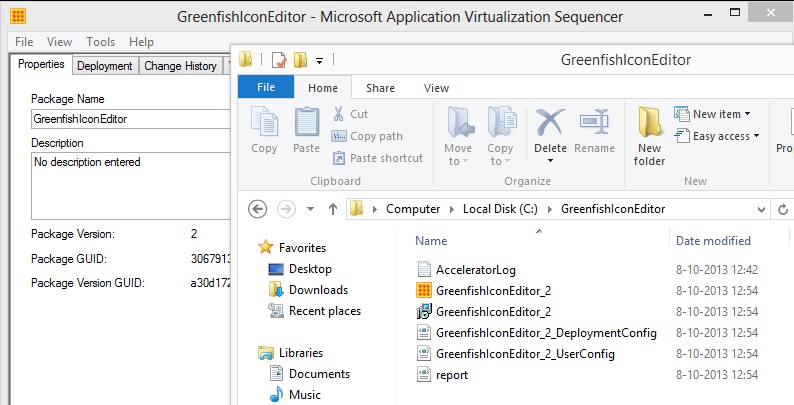
    In AppV 4.x the standard behaviour was to append the internal version number associated with the sequence to the .sft output file. The .osd files would then point to the new xxxxx_2.sft file and so on and so on. In AppV 5.0 SP1 this is only true the first time:

    first_upgrade


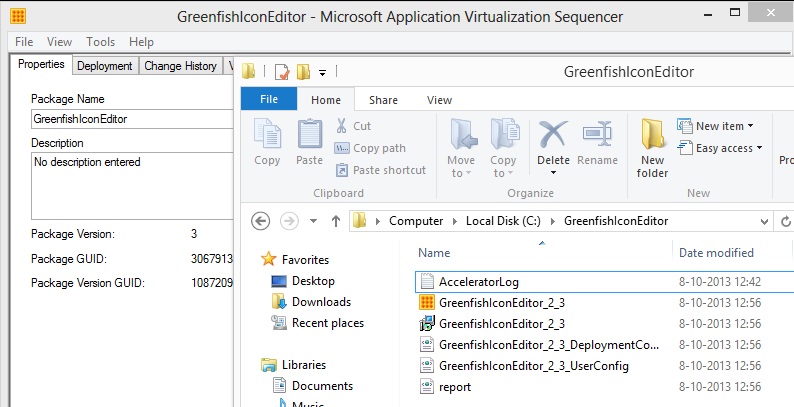
    When a sequence is upgraded a second time the internal version number is appended to the already added internal version number from the first upgrade:

    second_upgrade


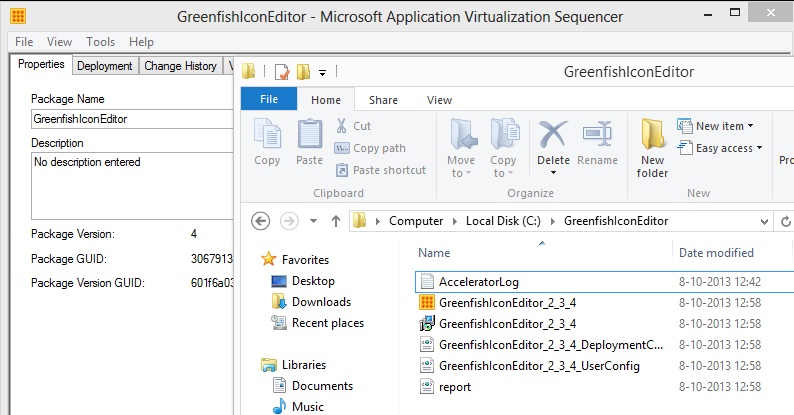
    With a third upgrade the unexpected behaviour is even more clear:

    third_upgrade


    I haven’t come across anyone else mentioning the same behaviour, but I would imagine that I am not the only one that has noticed this unexpected (not standard) behaviour.

  • Removing all AppV 5.0 sequences at once

    In AppV 5.0 I couldn’t find an alternative to the SFTMIME REMOVE obj:app /global /complete command I used so much in Softgrid\AppV 4.x. Not even searching for it in my favorite search engine Google. Until just now when I stumbled on the following possibility while trying different PowerShell combinations on the AppV Client.

    Keep in mind that you can’t remove sequences that are part of a connection group. So you have to remove connection groups first. Use the command:

    Get-AppvClientConnectionGroup -All | Remove-AppvClientConnectionGroup

    After removing all the connection groups it is time to remove all the sequences. Use the command:

    Get-AppvClientPackage -All | Remove-AppvClientPackage

    The only thing I haven’t figured out yet is how to remove all the empty folders that are left in C:\Programdata\AppV\ with PowerShell. And the client doesn’t seem to handle this forceful removal very well seeing that connection groups aren’t automatically republished. Work in progress…


  • Adobe Connect meeting without video or sound

    Recently I had to give a presentation to a group of people in an Adobe Connect meeting. So far so good…

    Before actually giving the presentation I tested the Adobe Connect meeting website, microphone and webcam a few hours earlier. Convinced that everything worked as intended I shut down my laptop. Later that evening I started my laptop and opened Internet Explorer. I went to the Adobe Connect meeting website and started to set up the presentation. For some reason the microphone and webcam wouldn’t work and I began to troubleshoot.

    A reboot of the laptop didn’t fix the problem. The sound options in Windows looked OK. The webcam was working in the Windows 8 Camera tile and the microphone was working in the Sound Recorder application within Windows 8. That indicated to me that the problem was within the Adobe Connect meeting website. I went through all the options, closed down en restarted Internet Explorer and cleared the Internet Explorer cache. As I was pressed for time, already thirty people were waiting for my presentation, I went for the best option available and shared my screen showing the presentation and communicated through the Chat pane. I answered most questions and the people present at the meeting seemed satisfied.

    After ending the meeting I had to find the root cause of the problem before I could get some sleep. I found the root cause in the settings screen of the Webcam pane on the Adobe Connect meeting website. Apparently Adobe Flash Player had decided to deny the Adobe Connect meeting website access to my camera and microphone (see below). I don’t know why this setting was set to Deny and Remember seeing that I never entered this settings screen before to change this setting. But from now on this is one of the first places I will look for in case of a failing microphone and webcam in an Adobe Connect meeting.

    AdobeFlashPlayerSettings_DenyAccessMicrophoneWebcam

    If anyone has any reason why Adobe Flash Player would automatically set these settings to Deny and Remember I would like you to let me know in the comments. Thanks in advance.


  • Impromptu 7.4 User Version won’t start from within Beaufort 3.3

    INTRO

    The company I work for as an external consultant consists of four individual companies merged into a new company and thus a new environment (new forest, new domain, etc etc). Every individual company carries out it’s own application migration. Two of the individual companies each use the Beaufort application and wanted to consolidate the Beaufort application (Human Resource application). As a first action their two separate Beaufort databases were merged into one of the existing databases and the merged database was placed in the new environment. It is important to know that one of the individual companies is already migrated to the new environment and the second individual company is in the process of migrating.

    In the new environment different drive letters are assigned for locations that hold either consolidated applications or non-consolidated applications and drive letters are divided to hold either the application or the application data. In the existing sequence the Beaufort application (RAET\BEAUFORT 33 and Cognos folders) was installed to K:\Beaufort and the application data (CUO, Impromptu and INTRACOM folders) was installed to M:\Beaufort. These are the locations for non-consolidated applications of the already migrated individual company. The Beaufort application worked as intended.

    Seeing that the Beaufort application needed to be consolidated I made the decision to make a new sequence instead of upgrading the existing sequence because the installation locations needed to change. I made a new sequence based on the installation manual for the existing sequence and changed the installation folders to R:\Beaufort and S:\Beaufort.  These are the locations for consolidated applications. Without this new sequence the already migrated individual company had no valid way of  reaching the merged database in the new environment.

    During functional testing we came across the problem that Impromptu couldn’t be started from within the Beaufort application. The Beaufort application has a menu structure with the option to start Impromptu. The Load catalog screen was shown but after that an error was generated on screen stating that the S:\Applicatie_data\Beaufort\EZ3.3\Impromptu\Catalogus\SE_orad.CAT catalog could not be opened. SE_orad.CAT is the default security catalog installed during the initial installation.

    TROUBLESHOOTING

    I started an command prompt within the virtual application with the command-line:

    SFTTRAY.EXE /EXE cmd.exe “<Full Application package Name>”

    Full Application Package Name is the combination of SOFTPKG NAME and SOFTPKG VERSION. After browsing to the right folder I started ImpUser.exe and Impromptu started without a problem.

    After that I started the Cognos_Impromptu.osd which I kept in the sequence and Impromptu started without a problem.

    By then I began focusing on the Beaufort database to see if it contained misconfigurations. I was looking for paths pointing to network locations of the second individual company. I started investigating Cer5.ini and IMPROMPTU.ini for misconfigurations.

    All to no avail.

    SOLUTION

    Just that day the DBA responsible for the database migration sat at the desk across from me. We started to troubleshoot together and found the problem and how to fix it. I must say that without the DBA I probably would never have found the cause of the problem.

    He started asking me about the contents on the TNSNAMES.ORA so I showed him. Entry for the merged Beaufort database was as follows:

    BO2PP.WORLD =
    (DESCRIPTION =
    (ADDRESS_LIST =
    (ADDRESS = (PROTOCOL = TCP)
    (HOST = <ORACLE-SERVER_1>)(PORT = 1522))
    (ADDRESS = (PROTOCOL = TCP)
    (HOST = <ORACLE-SERVER_2>)(PORT = 1522))
    )
    (CONNECT_DATA =
    (SERVICE_NAME = bo2pHA)
    )
    )

    This is the way how a High Available solution (Data Guard) would normally look for an Oracle database. Instead of one server name and port number 1521 a second server name is added en the port numbers are changed to 1522. I’m intentionally forgetting all the backend configuration needed for this configuration in this blog because it is out of the scope of this article.

    The DBA then informed me that the entry needed to be changed because the application Beaufort can handle a different port number but the application Impromptu can’t handle a different port number. Apparently he ran into the same problem a few weeks earlier at the second individual company.

    We changed the entry as follows:

    bo2pp.world =
    (DESCRIPTION =
    (ADDRESS_LIST =
    (ADDRESS = (PROTOCOL = TCP)
    (HOST = <ORACLE-SERVER_1>)(PORT = 1521))
    )
    (CONNECT_DATA =
    (SERVICE_NAME = bo2pp)
    )
    )

    After that we tested Impromptu from within the Beaufort application and Impromptu started and worked as intended.  Rest assured that this solution is now documented within the company (and this blog) and a warning is issued to all application owners to check all other applications if they can operate when a Data Guard solution is active.

  • Changing the AppV content store location and how it affects sequences already published in RES Workspace Manager 2011

    Let me start at the beginning….

    Way back in June of 2012 I came to the project I am about to finish. During the start of the project the AppV content share was placed somewhere on the DFS. We were told (repeatedly) that that location was never going to change. Based on that we made about fifty sequences with the UNC location of the content share on the DFS as the location were the sequences reside. In conjunction with file based streaming this solution looked solid. The sequences were published in RES Workspace Manager 2011 so all the osd files were imported in to the RES Workspace Manager database.

    In hindsight we should have implemented an environment variable from the start, but for reasons unknown we didn’t.

    Just recently I was told that the location of the AppV content share needed to change. It was placed on a location that was prone to filling up with excessive data. I had a meeting with the system administrators to name some of the actions that needed to be executed.

    Defined actions:

    • Create a new LUN dedicated to the AppV content share.
    • Copy all sequences from the current AppV content share to the new AppV content share.
    • Edit the Preload scripts.
    • Edit all osd files on the new AppV content share and replace the UNC path with an environment variable.
    • Edit all sequences that are published through RES Workspace Manager and replace the UNC path with an environment variable.

    The first two actions (LUN and copy) were completed by the system administrators. Actions three and four were completed by another member of the migration team and me. I edited the Preload scripts (modified versions of the Wilco van Bragt preload scripts which can be found here). Another member of the migration team wrote a PowerShell script to change all the osd files on the new content store.

    PowerShell Script:

    $osds = Get-ChildItem -include *.osd -recurse -path \\[path to new AppV content share] foreach ($osd in $osds)
    {
    $osdFile = $osd.fullname
    $xml = New-Object XML
    $xml.Load($osdFile)
    $xml.SOFTPKG.IMPLEMENTATION.CODEBASE.HREF = $xml.SOFTPKG.IMPLEMENTATION.CODEBASE.HREF.ToUpper().Replace([path to new AppV content share], “%SequenceStore%”)
    $xml.Save($osdFile)
    }

    And for the last action I had to consult RES Software. I opened I case with the question if there is a bulk method of changing the osd files in the RES Workspace Manager database. Within a few hours I received a response which proved good enough to implement.

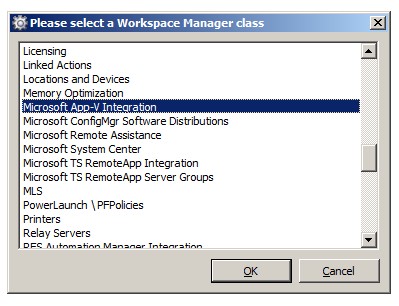
    The key combination CTRL + SHIFT + F9 opens up the screen below IF you press them in the Administration – Custom resources node. According to the mail of RES Software. In the dutch interface I found it at Configuratie – Datastore – Maatwerkbestanden.

    RES_CTRL-SHIFT-F9

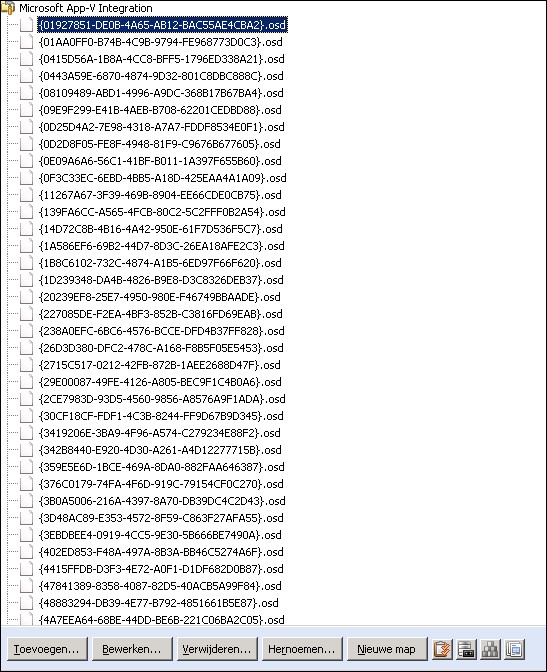
    After selecting Microsoft App-V Integration and clicking OK I am presented with the following view.

    RES_App-V_Integration

    This view makes it easy to rapidly change all the osd files that are present in the database without having to open each individual published application to discover if it is in fact a published AppV sequence and to change the osd file by clicking in the “Click here to change the OSD file in the datastore” line in each published sequence. Which in the end saves time.

    This option made the transition to a new AppV content store a lot easier to implement and it sped up the implementation a lot. Any improvements on the PowerShell script and RES Workspace Manager bulk edit action are more then welcome in the Comments field.